
Description
Recover Your Credit Card Processing Fees
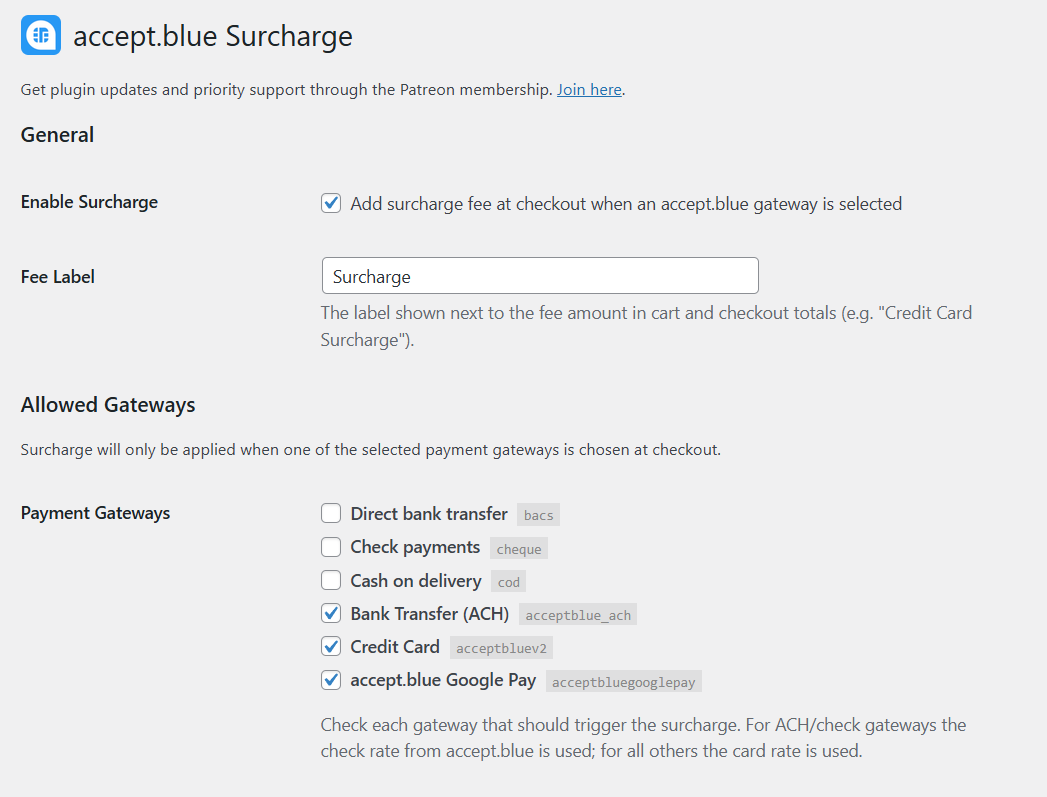
accept.blue Surcharge for WooCommerce allows merchants to automatically apply credit card surcharges when customers pay using an accept.blue gateway.
Unlike typical surcharge plugins that modify the cart total, this plugin integrates directly with the accept.blue surcharge API, ensuring that fees are applied correctly during payment processing.
This prevents double surcharges and maintains accurate WooCommerce order records.
Key Features
Automatic Surcharge Rate Detection
The plugin automatically retrieves your live surcharge rates from accept.blue.
No manual configuration required.
Rates fetched include:
-
Credit card surcharge rate
-
ACH / check surcharge rate
Prevents Double Surcharge Charges
Most WooCommerce surcharge plugins add the fee directly to the cart total.
That breaks accept.blue’s surcharge engine and causes customers to be charged twice.
This plugin keeps the WooCommerce cart total clean and allows accept.blue to calculate the surcharge during payment processing.
Fully Compatible with accept.blue Gateways
Works with:
-
accept.blue Credit Card Gateway
-
accept.blue ACH Gateway
The plugin automatically applies the correct surcharge rate depending on the selected gateway.
WooCommerce Subscriptions Support
Fully compatible with WooCommerce Subscriptions.
The plugin automatically:
-
Removes copied surcharge fees from renewal orders
-
Sends the correct base amount to accept.blue
-
Records the surcharge after payment confirmation
No additional setup required.
Accurate WooCommerce Order Records
After payment confirmation, the surcharge is recorded as a WooCommerce fee line item.
It appears in:
-
WooCommerce admin orders
-
Customer order emails
-
My Account order history
-
WooCommerce reports
-
Order exports
How It Works
Step 1 — Customer selects accept.blue payment
At checkout the plugin displays a surcharge notice.
Step 2 — WooCommerce sends clean order total
The cart total remains unchanged.
Example:
Order Total
$10.00
Step 3 — accept.blue applies surcharge
accept.blue calculates the surcharge during payment processing.
Example:
3% surcharge
Customer pays: $10.30
Step 4 — WooCommerce records surcharge
After payment confirmation, the plugin records the surcharge on the WooCommerce order.
Requirements
Before installing the plugin, ensure your environment includes:
-
WordPress 5.8+
-
WooCommerce 6.0+
-
PHP 7.4+
-
Active accept.blue merchant account
-
accept.blue WooCommerce payment gateway installed
Optional:
-
WooCommerce Subscriptions plugin (for recurring billing)
Installation
-
Download the plugin zip file
-
Go to WordPress → Plugins → Add New
-
Upload the plugin file
-
Activate the plugin
-
Navigate to:
WooCommerce → AB Surcharge
-
Enter your accept.blue Source Key and PIN
-
Click Test Connection
Perfect For
This plugin is ideal for:
-
WooCommerce merchants using accept.blue
-
Businesses wanting to offset credit card fees
-
Developers integrating accept.blue payment systems
-
Subscription-based WooCommerce stores
Support & Updates
Support and updates are available through Patreon membership.
Join here:


Reviews
There are no reviews yet.