 RyanPlugins
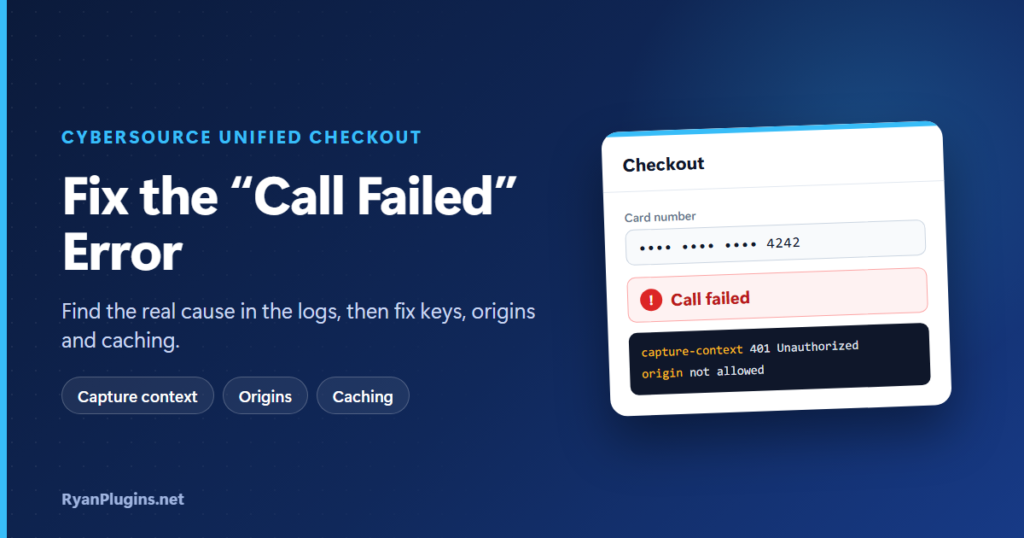
When Cybersource Unified Checkout shows “call failed” or the payment form never appears at WooCommerce checkout, the message itself tells you very little. It is a wrapper around a more specific failure: either your server’s request to Cybersource was rejected, or the checkout script in the browser could not start. This guide shows you how to find the real reason in a few minutes, then fix it.
Why does Unified Checkout say “call failed”?
Short answer: “Call failed” almost always means the capture context request failed. Before the payment form loads, your store asks Cybersource for a short-lived session token called a capture context. If your Merchant ID, REST API Key ID or Shared Secret is wrong, belongs to the other environment, or your domain doesn’t match the session, Cybersource refuses and the form can’t load. Turn on debug logging and read the exact error before changing anything.
How a Unified Checkout payment starts
Knowing the order of events tells you where to look:
- Your server asks for a capture context. The plugin sends a signed REST request to Cybersource with your Merchant ID and API key. Cybersource returns a signed token (a JWT) that lists which card networks, wallets and website origins this session may use.
- The browser loads the Unified Checkout script. It comes from
apitest.cybersource.comin test mode andapi.cybersource.comin live mode. - The script checks the token and mounts the form. It verifies the token’s signature, its expiry and that the page’s address is one of the allowed origins.
- The customer pays. The card is tokenized by Cybersource, 3D Secure runs if needed, and the plugin completes the order.
A failure in step 1 shows up in the WooCommerce logs. A failure in steps 2 to 4 shows up in the browser console as a UnifiedCheckoutError with a reason code.
Step 1: Find the real error
Read the WooCommerce log
- Go to WooCommerce › Settings › Payments, open Cybersource Unified Checkout and turn on Debug Mode / Logging.
- Load the checkout page again so the error repeats.
- Open WooCommerce › Status › Logs and pick the newest file starting with
cybersource_uc-. - Look for the HTTP status code and the response body from Cybersource next to the capture context request.
Read the browser console
Open the checkout page in Chrome, press F12 and choose the Console tab. Reload the page. A Unified Checkout problem appears as an error named UnifiedCheckoutError with a reason such as CAPTURE_CONTEXT_EXPIRED or MOUNT_ERROR. Use the tables below to match it.
Turn debug logging off again when you’re done, so the logs don’t grow without need.
Step 2: Fix capture context failures (server side)
If the log shows the capture context request failing, the cause is almost always one of these.
| What the log shows | Likely cause | Fix |
|---|---|---|
| HTTP 401, authentication failed | Wrong REST API Key ID or Shared Secret, or a stray space when pasting them | Generate a new REST shared secret key in Payment Configuration › Key Management and paste both values again |
| HTTP 401 with the right keys | Test keys used with the Live environment, or live keys with Test | Keys from businesscentertest.cybersource.com only work in Test. Make the plugin’s Environment setting match where you created the key |
| HTTP 401 that started suddenly | Your server’s clock is wrong. Requests are signed with the current time, and Cybersource rejects ones that are too far off | Ask your host to enable time sync (NTP) on the server |
| HTTP 401 or 403 with a different MID | The Merchant ID doesn’t own the key (common with portfolio or reseller accounts) | Use the MID the key was created under, or create the key inside the transacting MID |
| HTTP 400, field or validation error | A required field is missing or in the wrong format, often billing address details | Set Billing Type Screen to Full, check the WooCommerce billing fields are required, and read which field the response names |
| Rejected even though keys work for other calls | Unified Checkout, or a selected wallet, isn’t enabled on this MID | In the Business Center open Payment Configuration › Unified Checkout and enable the payment methods for every MID that takes payments |
| Timeout, cURL error or SSL error | The server can’t reach Cybersource: an outbound firewall, or no TLS 1.2 support | Ask your host to allow outbound HTTPS to api.cybersource.com and apitest.cybersource.com and confirm TLS 1.2 or later |
Changed the keys and still get 401? Clear any object cache (Redis, Memcached) and save the gateway settings again, so the plugin isn’t using the old values.
Step 3: Fix errors in the browser
These reason codes come from Cybersource’s Unified Checkout library. The cause and fix are for a WooCommerce store.
| Reason code | What it means | Fix in WooCommerce |
|---|---|---|
CAPTURE_CONTEXT_EXPIRED | The session token has expired | Usually a cached checkout page, or a tab left open too long. Exclude /checkout/ from page and CDN caching so each visit gets a fresh token |
CAPTURE_CONTEXT_INVALID | The token is malformed or its signature doesn’t verify | Often a minify or optimization plugin changing inline scripts, or a test token used with the live script. Check the Environment setting and exclude checkout from script optimization |
UNUSED_TARGET_ORIGINS | The page address doesn’t match the origins in the session | Make WordPress Address and Site Address identical, including https and www. On a staging site, the staging domain must be the one in use |
MOUNT_ERROR | The payment iframe failed to load | A Content Security Policy, firewall or ad blocker is blocking Cybersource. Allow *.cybersource.com in CSP and test in a private window with extensions off |
MOUNT_CONTAINER_SELECTOR | The form’s container isn’t on the page | The theme or a checkout editor removed the payment area. Test with a default theme, and enable WooCommerce Blocks Checkout if you use the block checkout |
MOUNT_PAYMENT_UNAVAILABLE | No payment type could be shown | No card networks selected, or only wallets that this browser can’t show (Apple Pay needs Safari on Apple devices). Select at least Visa and Mastercard |
MOUNT_TOKEN_TIMEOUT / MOUNT_TOKEN_XHR_ERROR | Network error while creating the token | The customer’s connection, a VPN or a corporate proxy. Ask them to retry on another network |
COMPLETE_AUTHENTICATION_FAILED | The 3D Secure check failed | The bank declined the challenge. Check Payer Authentication is set up for the MID, then ask the customer to retry or use another card |
COMPLETE_TRANSACTION_FAILED | The payment failed during processing | Search the transaction in the Business Center under Transaction Management to see the decline or fraud-rule reason |
Step 4: Rule out caching and optimization plugins
Caching and speed plugins cause more Unified Checkout failures than anything except wrong keys, because the session token is meant to be used once and soon. Check these:
- Page cache: exclude cart, checkout and my-account in LiteSpeed Cache, WP Rocket, Cloudflare APO or your host’s cache.
- JavaScript optimization: exclude
UnifiedCheckout.jsand anything fromcybersource.comfrom defer, delay, combine and minify. - Security plugins and CSP headers: allow scripts and frames from Cybersource domains.
A quick test: switch the caching plugin off for five minutes and place a test order. If the form loads, turn the plugin back on and add the exclusions.
Checklist before you contact support
- Environment, Merchant ID and REST keys all come from the same Business Center (test or live).
- Unified Checkout and each selected wallet are enabled for this MID.
- The site loads on one address only, over HTTPS.
- Checkout is excluded from page caching and script optimization.
- A test card from the Unified Checkout test payment guide works in Test mode.
Still stuck? Send the cybersource_uc- log lines and the console error to support@ryanplugins.net. Remove your Shared Secret first. The log and the reason code are usually enough to pinpoint the problem in one reply.
Related guides
- Cybersource Unified Checkout setup guide: Business Center settings, 3D Secure and REST keys
- Plugin settings reference: what each setting does
- Apple Pay and Google Pay enrollment: domain verification for wallets
- WooCommerce Cybersource Unified Checkout plugin
Frequently asked questions
Does “call failed” mean my Cybersource account is blocked?
Rarely. In most cases it is a credentials, environment or domain mismatch on the store’s side. Check the WooCommerce log first. If Cybersource returns 401 with keys you have just generated, then ask Cybersource support whether REST access is enabled for your MID.
Why does checkout work for me but fail for some customers?
That points to caching or the customer’s browser. A cached checkout page hands out an expired session token, and ad blockers or corporate networks can block the Cybersource script. Exclude checkout from caching, then ask affected customers to try another browser or network.
Unified Checkout worked in Test mode but fails after going live. Why?
Test and live are separate Business Centers with separate keys and separate payment method settings. Create new REST keys in the live Business Center, switch the Environment setting to Live, and enable Unified Checkout and each wallet on the live MID.
Why don’t Apple Pay or Google Pay buttons appear?
Each wallet must be enabled for your MID and your domain must be verified. Apple Pay only appears in Safari on Apple devices with a card in Wallet. If no payment type can be shown at all, Unified Checkout reports MOUNT_PAYMENT_UNAVAILABLE.