CyberSource Secure Acceptance Profile ID — locating this one setting is the first roadblock most merchants hit when connecting WooCommerce to CyberSource. It isn’t always where you’d expect it to be inside the Business Center. In this guide, we’ll walk through exactly where to find your CyberSource Secure Acceptance Profile ID, what it’s used for, and how the RyanPlugins CyberSource Payment Gateway (a one-time purchase of $79 USD) uses it to connect your store securely.
What Is a CyberSource Secure Acceptance Profile ID?
Your Profile ID is a unique identifier tied to a specific Secure Acceptance configuration inside your CyberSource Business Center account. It tells CyberSource which set of payment rules, receipt fields, and security settings to apply when a transaction comes in from your WooCommerce store. Every Secure Acceptance integration — whether you’re using Hosted Checkout or a Silent Order Post — requires a valid Profile ID, along with an Access Key and Secret Key, before transactions can be processed. For the full field-by-field breakdown, CyberSource maintains official Secure Acceptance developer documentation covering every profile setting in detail.
Step-by-Step: Where to Find Your Profile ID
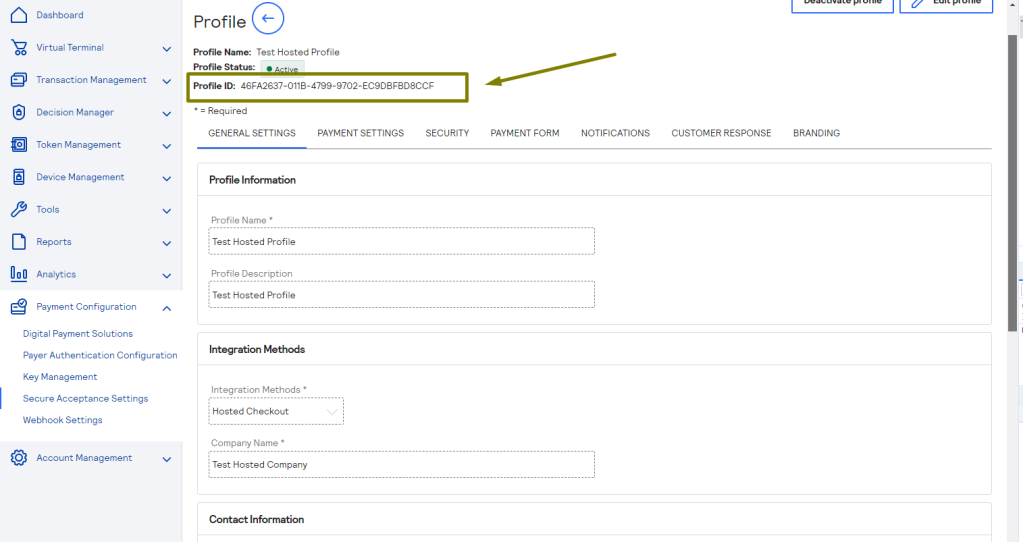
- Log in to the CyberSource Business Center (test or production, depending on which environment you’re configuring).
- In the left-hand navigation menu, go to Account Management.
- Click into Secure Acceptance Settings.
- Select Profiles from the submenu. You’ll see a list of every Secure Acceptance profile associated with your account.
- Click on the profile you want to use. The Profile ID is displayed at the top of the profile detail page, usually as a long alphanumeric string.
- Copy the Profile ID exactly as shown — no extra spaces, and don’t confuse it with the Access Key or Secret Key, which are found on separate tabs of the same profile.
If you don’t see any profiles listed, it usually means Secure Acceptance hasn’t been enabled on your merchant account yet. In that case, you’ll need to contact your CyberSource account representative or support to have a profile created before you can proceed.
Common Issues When Locating the Profile ID
- Test vs. Production mismatch — Profile IDs from your sandbox account will not work in production, and vice versa. Double-check which Business Center environment you’re logged into.
- Multiple profiles — Larger accounts often have several profiles for different purposes (subscriptions, one-time payments, different currencies). Make sure you’re copying the ID for the profile actually configured for your WooCommerce checkout flow.
- Permissions — Some Business Center user roles can’t view Secure Acceptance settings. If the menu option is missing, ask your account admin to grant access or retrieve the ID for you.
If you’re running a different CyberSource integration, note that this workflow is specific to Secure Acceptance — our CyberSource Unified Checkout plugin uses a separate set of API credentials from the Business Center’s newer UCO Sessions API.
Using Your Profile ID with RyanPlugins CyberSource Payment Gateway
Once you have your Profile ID, Access Key, and Secret Key in hand, setup inside WooCommerce takes just a few minutes. The RyanPlugins CyberSource Payment Gateway — available as a $79 USD, one-time purchase — gives you a dedicated settings panel under WooCommerce → Settings → Payments where these three credentials are entered directly, with no manual code edits required.
- Hosted, PCI-compliant checkout flow
- Support for both Sandbox and Production environments
- Tokenized card storage for returning customers
- Subscription and recurring payment compatibility
- Detailed transaction logging for troubleshooting
- Regular updates aligned with CyberSource API changes
Pricing
The RyanPlugins CyberSource Payment Gateway is sold as a straightforward $79 USD one-time purchase — no monthly fees, no recurring subscription, and no per-transaction markup from us on top of CyberSource’s own processing rates.
CyberSource Payment Gateway for WooCommerce
$79 USD
One-time purchase · Lifetime license · Free updates
Get the Plugin — $79 USDFrequently Asked Questions
How much does the RyanPlugins CyberSource Payment Gateway cost?
The plugin is $79 USD, sold as a one-time purchase. There are no recurring subscription fees for the plugin itself.
Is this plugin compatible with the latest version of WooCommerce?
Yes. The plugin is built and tested against current WooCommerce releases and follows WooCommerce’s standard payment gateway API, so it works alongside most themes and other WooCommerce extensions.
What do I need before I can set up the gateway?
You’ll need an active CyberSource merchant account with Secure Acceptance enabled, along with your Profile ID, Access Key, and Secret Key from the Business Center. From there, setup is done entirely through the WooCommerce settings screen.
Is the CyberSource Secure Acceptance integration secure?
Yes. Secure Acceptance is a PCI-compliant, hosted checkout method, meaning sensitive card data is submitted directly to CyberSource rather than passing through your server. This reduces your store’s PCI compliance scope significantly.
Does the $79 price include future updates?
Yes. The $79 USD one-time purchase includes free plugin updates, including compatibility updates as CyberSource or WooCommerce change their APIs.
Can I test the gateway before going live?
Yes. The plugin supports CyberSource’s Sandbox environment, so you can fully test checkout, tokenization, and subscription flows using a test Profile ID before switching to your production credentials.
Ready to Connect CyberSource to Your Store?
Once you’ve located your Profile ID, the rest of the setup takes minutes. Grab the RyanPlugins CyberSource Payment Gateway for a one-time $79 USD payment and get a fully PCI-compliant, tokenized checkout running on your WooCommerce store today.
CyberSource Payment Gateway — $79 USD
One-time purchase. No subscription required.
Buy on CodeCanyon Buy via RyanPlugins