Overview
This guide provides step-by-step instructions to enable Click to Pay and set up Customer Authentication (3-D Secure) using Cybersource Unified Checkout.
These features enhance checkout security and convenience by allowing customers to use stored card details and strong authentication methods such as OTP, CVV, or biometric verification.
Section 1: Enabling Click to Pay
About Click to Pay
Click to Pay is a digital payment solution that allows customers to securely pay with their preferred card network (Visa, Mastercard, American Express, etc.) without re-entering card details for every transaction. It provides a fast, secure, and consistent checkout experience across browsers and devices.
Steps to Enable Click to Pay
- Log in to the Cybersource Business Center Production URL: https://businesscenter.cybersource.com If you cannot access the page, contact your Cybersource sales representative.
- Navigate to:
Payment Configuration > Unified Checkout
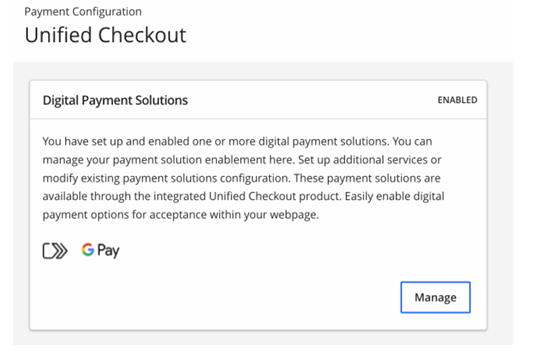
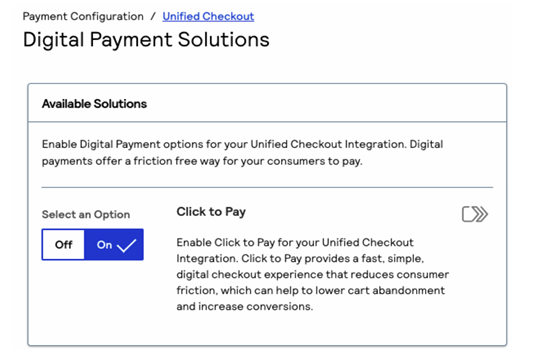
- In the Digital Payment Solutions section, click Manage to view your available digital payment methods.
- If Click to Pay is not yet enabled, toggle it On.
- Click Set Up under the Click to Pay section.
- Enter your business details:
- Business Name
- Website URL
- Click Submit to save your configuration.
- Contact your Cybersource Implementation Contact or Technical Account Manager to request tokenization enablement for Click to Pay.
They will confirm once your configuration is complete and Click to Pay is active for your account.
Section 2: Set Up Customer Authentication for Visa
Customer authentication ensures that each Click to Pay transaction is verified for security. Depending on your region and issuer, one or more of the following authentication methods will be used:
- 3-D Secure (3DS)
- FIDO
- Card Verification Value (CVV)
- One-Time Password (OTP)
⚠️ Important:
After setup, Visa automatically determines the appropriate authentication method for each transaction. This may include frictionless or step-up authentication depending on the issuer’s requirements.
Section 3: Setting Up 3-D Secure (3DS)
3-D Secure adds an additional layer of authentication for cardholders during online transactions, helping prevent unauthorized card use.
Steps to Set Up 3-D Secure
- In the Cybersource Business Center, navigate to:
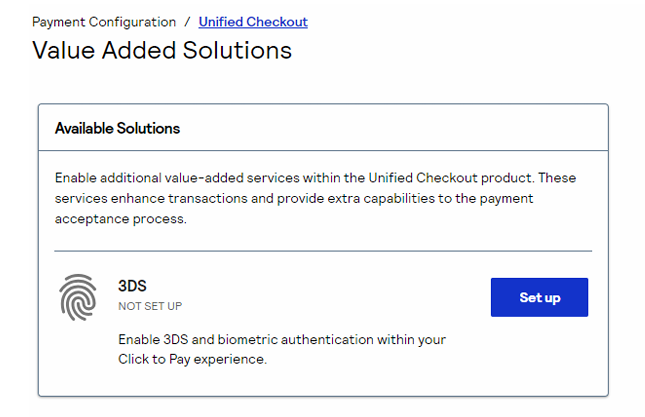
Payment Configuration > Unified Checkout > Value Added Solutions
- Under Value Added Solutions, click Set Up next to 3DS.
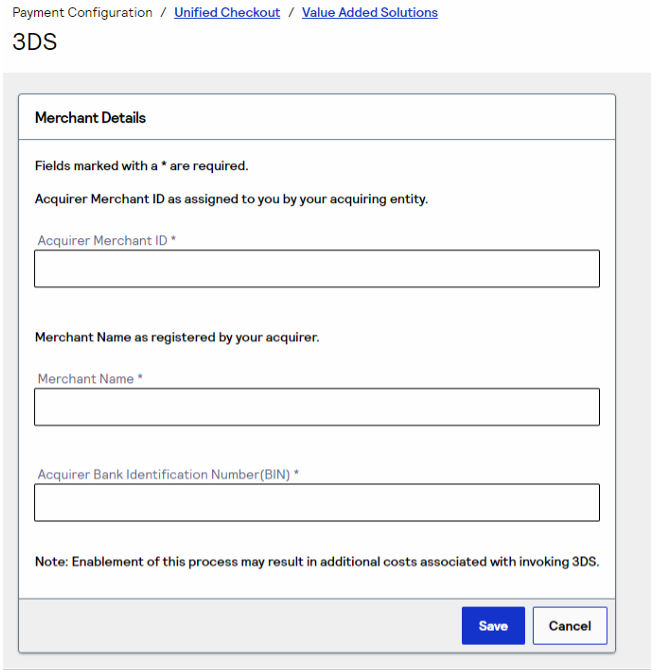
- The 3DS Setup Page appears.
In the Merchant Details section, enter the following information (provided by your acquiring bank):- Acquirer Merchant ID — Assigned by your acquiring entity
- Merchant Name — Registered business name
- Acquirer Bank Identification Number (BIN)
- Click Save to complete the setup.
Important Notes:
- This setup enables Cybersource to send Visa the required data for 3DS authentication.
- If you do not know your Acquirer Merchant ID or BIN, contact your acquiring bank or processor.
- Additional charges may apply for 3-D Secure services. Confirm costs with your acquirer before proceeding.
Section 4: Verification & Testing
Once setup is complete:
Ensure that your integration correctly captures authentication responses from Visa (frictionless or challenge flows).
Confirm with your Cybersource Technical Account Manager that both Click to Pay and 3DS are active.
Test transactions using the Test URL before switching to production.