 RyanPlugins
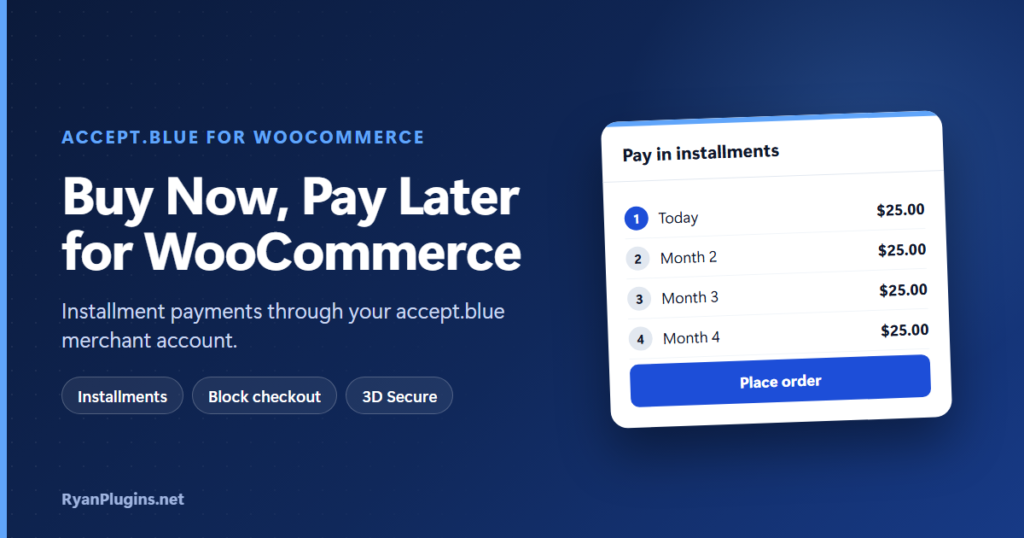
Buy now, pay later lets customers spread a purchase over several payments instead of paying everything at checkout. For higher-priced products, that can be the difference between a sale and an abandoned cart. There are two very different ways to offer Buy Now Pay Later for WooCommerce: through a BNPL provider such as Klarna, Afterpay or Affirm, or with installments you run yourself through your own merchant account. This guide explains both, then shows how to set up merchant-run installments with accept.blue.
How do I offer buy now, pay later in WooCommerce?
Short answer: Either add a BNPL provider’s plugin, where the provider pays you upfront and collects from the customer for a fee, or offer your own installment plans through your payment gateway. With the accept.blue v2 Premium Addons, an Installments payment method lets customers pay in 2, 3, 4, 6 or 12 payments, weekly to quarterly, with the down payment you choose. The first payment is charged at checkout, and accept.blue charges the remaining installments to the customer’s saved card on schedule. You receive each payment as it’s collected and carry the risk of missed payments yourself.
BNPL providers vs merchant-run installments
| BNPL provider (Klarna, Afterpay, Affirm and others) | accept.blue Installments | |
|---|---|---|
| Who pays you | The provider, usually upfront in full | The customer, one installment at a time |
| Who carries the risk of non-payment | The provider | You |
| Cost to you | Provider fees, typically higher than card fees | Your normal card processing fees on each installment |
| Credit check | Done by the provider | None |
| Who sets the plan | The provider | You: number of payments, frequency, down payment |
| Customer relationship | Partly the provider’s (their app, their emails) | Entirely yours |
| Approval for the customer | Can be declined by the provider | Any customer with a valid card |
In short: a BNPL provider is better if you want the money upfront and no risk. Merchant-run installments are better if you want to keep fees low, control the terms and keep the customer relationship, and you’re comfortable carrying some risk.
How accept.blue Installments work
- The customer chooses Installments at checkout and sees the plan: for example, $100 today and three more payments of $100, monthly.
- The first payment is charged at checkout, according to your down payment setting. It can also be $0 today.
- The card is saved as a secure accept.blue token.
- accept.blue schedules the rest as recurring charges on that card, at the frequency you chose.
- The order is placed with the status you choose, so you can ship straight away or wait.
- Each installment is charged automatically, and the customer can receive an accept.blue receipt email for each one.
Plan options
| Setting | Options |
|---|---|
| Number of Installments | 2, 3, 4, 6 or 12 payments in total, including any down payment |
| Installment Frequency | Weekly, every 2 weeks, monthly, every 2 months or quarterly |
| Down Payment Mode | $0 today; an equal split; 25% today; 50% today; or a custom percentage from 1% to 99% |
| Default Order Status | Default (processing or complete), Processing, On Hold or Completed |
| Receipt Emails | Send an accept.blue receipt for each scheduled installment |
Choosing safe settings
Because you carry the risk, set the plan up to protect yourself:
- Take a meaningful down payment. 25% or 50% today means a missed payment costs you less. “$0 today” is the most attractive to customers and the riskiest for you.
- Keep plans short. Four payments over two months is far safer than twelve over a year.
- Ship after the first payment, or later. For high-value or custom items, set the order to On Hold and ship once more of the price is collected.
- Turn on 3D Secure. The Installments method has its own Paay 3D Secure settings, so the customer’s bank authenticates them at checkout.
- Use Cloudflare Turnstile and rate limiting to keep card testers away from the checkout.
Setting it up
- Get the accept.blue v2 Premium Addons. Installments appear at checkout once your RyanPlugins license is active.
- Go to WooCommerce › Settings › Payments and open Installments.
- Enable it, and set the title and description customers see.
- Choose the number of installments, frequency and down payment mode.
- Choose the card brands to show and, if you use it, set up 3D Secure.
- Choose the default order status and whether to send receipt emails.
- Save, then place a test order with Test Mode on and check the schedule in the accept.blue sandbox.
The method works on the classic checkout and the block checkout.
Who should offer installments?
Installments work well for:
- Furniture, equipment, instruments and other higher-priced items.
- Courses, coaching and services paid in stages.
- Stores whose customers are repeat buyers you know and trust.
- B2B sales where a customer prefers to spread a large order.
They’re less suitable for low-priced items, where the fees and admin outweigh the benefit, and for stores with high fraud risk.
Handling a missed installment
If a scheduled charge is declined, it shows in your accept.blue account. Contact the customer quickly, ask them to update their card, and decide your policy in advance: pause shipping, retry, or treat it as a debt to recover. State the policy clearly in your terms of sale, and check local rules on consumer credit and installment sales where you sell.
Frequently asked questions
Is accept.blue Installments the same as Klarna or Afterpay?
No. Klarna and Afterpay pay you upfront and take on the risk for a fee. With accept.blue Installments, you’re paid as each installment is collected, at your normal card rates, and you carry the risk.
How many installments can I offer?
2, 3, 4, 6 or 12 payments in total, weekly, every two weeks, monthly, every two months or quarterly.
Can customers pay nothing today?
Yes, with the “$0 today” down payment mode. It’s the riskiest option for you, so many stores use an equal split or 25% instead.
Does the customer need a credit check?
No. Any customer with a valid card can choose installments. That’s why plan length and down payment are important.
Does it work with the block checkout?
Yes. The Installments method supports both the block checkout and the classic checkout.
Add installments to your store
Installments are part of the accept.blue v2 Premium Addons, with Google Pay, Apple Pay and ACH / eCheck. New to accept.blue? Start with the setup guide, or read about Google Pay for WooCommerce.