 RyanPlugins
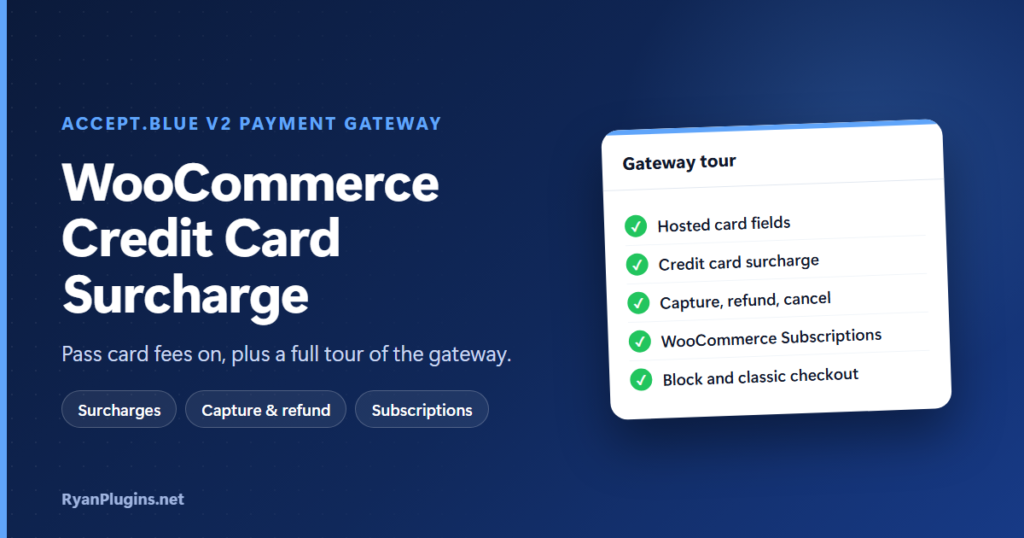
Card processing fees come straight out of your margin. A WooCommerce credit card surcharge lets you pass some of that cost to the customers who choose to pay by card. Where the rules allow it, it’s one of the fastest ways to protect your margin. This guide, and the 3-minute video tour below, show how the accept.blue v2 Payment Gateway handles surcharges, plus the rest of what the gateway does: secure checkout, order management, subscriptions and setup.
In the video: 0:22 secure checkout, 0:46 surcharges, 1:12 managing orders, 1:31 subscriptions and deposits, 1:51 checkout and compatibility, 2:11 setup, 2:32 add-ons and recap.
Can you add a credit card surcharge in WooCommerce?
Short answer: Yes. WooCommerce has no surcharge setting of its own, but a payment gateway can add one. With the accept.blue v2 gateway, you turn on Enable Surcharge, and a labelled surcharge line is added to card orders. The amount comes from the surcharge you set up in your accept.blue merchant account, or from a percentage or fixed amount you enter. Before you turn it on, check that surcharging is allowed for your business and card types, because card network rules and some local laws limit it.
How the WooCommerce credit card surcharge works
The surcharge settings are on the gateway’s settings screen:
| Setting | What it does |
|---|---|
| Enable Surcharge | Adds the surcharge to card payments. It is off by default. |
| Show Surcharge in Checkout | Shows the surcharge as its own line on the checkout page, so the customer sees it before paying. |
| Manual Surcharge | Uses the value you enter here instead of reading it from your accept.blue account. |
| Surcharge Type | Percent or a fixed currency amount. It must match your merchant surcharge setting. |
| Surcharge Value | The percentage or amount. It must also match your merchant setting. |
| Surcharge Label | The name customers see on the fee line, such as “Card processing fee”. The default is “Surcharge”. |
By default, the plugin reads the card surcharge from your accept.blue account, so the amount at checkout matches what the processor expects. Use the manual setting only if you need to, and keep it identical to your merchant setting. If the two differ, the amount the customer sees won’t match the amount that’s charged.
Rules to check before you surcharge
- Credit cards only. In the US, the card networks don’t allow surcharges on debit cards, including debit cards run as credit.
- Caps and notice. The card networks cap the surcharge and require you to tell customers about it, both on your site and at checkout. See Visa’s merchant guidance on fees and surcharging.
- Local law. Some US states and some countries limit or ban surcharges. A “cash discount” for paying by bank transfer is a common alternative.
- Make it visible. Turn on Show Surcharge in Checkout and use a clear label, so customers never find a surprise fee on their statement.
Your processor or a payments lawyer can confirm what applies to your business. This guide isn’t legal advice.
Secure checkout
The card fields are served by accept.blue’s hosted tokenization, so raw card numbers never reach your server or database, which keeps your PCI scope small. 3D Secure adds bank authentication, with a challenge timeout you can set from 30 seconds to 5 minutes, and it works on both Block checkout and classic checkout. For details, see WooCommerce payment tokenization explained and 3D Secure with accept.blue.
Managing orders: capture, refund and cancel
You can manage payments from the WooCommerce order screen instead of logging in to the merchant dashboard. Capture Mode controls when a card is actually charged:
- Automatic Capture charges the card at checkout.
- Authorization Only holds the funds, then captures them when you click capture or when the order reaches a status you choose (Completed by default). Adjust & Capture lets you change the amount before capturing, for example after removing an out-of-stock item. It needs the surcharge setting turned on, so the plugin can track the fee correctly.
- External ERP only authorizes, and leaves the capture to an outside system such as NetSuite.
Refunds, full or partial, use WooCommerce’s normal Refund button and go back to the customer’s card.
Subscriptions and compatibility
- WooCommerce Subscriptions: cards are saved as accept.blue tokens, which pay renewals automatically. Customers can change their payment method from My Account.
- Checkout: works with both Block checkout and classic checkout, including split expiry date fields, and can show the card brands you accept.
- HPOS: compatible with WooCommerce’s High-Performance Order Storage.
- Lower B2B fees: Level III line-item data can lower interchange on business cards. See Level 2 and Level 3 processing.
Setup and testing
- Get an accept.blue merchant account, and make sure your store runs on HTTPS.
- Create an API Source Key and PIN in accept.blue. See how to find your Source Key and PIN.
- Install the plugin, turn on Test Mode and enter your sandbox keys.
- Turn on the credit card surcharge if you use one, and place test orders to check the fee line, a capture and a refund.
- Switch to your live keys.
The accept.blue WooCommerce setup guide covers every setting step by step.
Frequently asked questions
Is a WooCommerce credit card surcharge legal?
In most of the US, yes, on credit cards, within the card network caps and with clear notice. A few states and some countries restrict it, and debit cards can’t be surcharged in the US. Check the rules that apply to you before you turn it on.
Can the surcharge be a fixed amount instead of a percentage?
Yes. Surcharge Type can be Percent or Currency. Whichever you choose, it has to match the surcharge set up in your accept.blue merchant account.
Can I surcharge ACH payments too?
ACH / eCheck has its own surcharge settings, and it can also offer a cash discount instead. ACH is part of the Premium Add-ons; see WooCommerce payment options for how wallets, ACH and installments fit together.
Can I try it before I go live?
Yes. Connect the plugin to accept.blue’s sandbox with your test keys and place test orders, including the surcharge, before you switch to live credentials.
Get started
The accept.blue v2 Payment Gateway is built and supported by RyanPlugins, so you talk directly to the developer. For other ways to take payments, see our guide to WooCommerce payment gateways.