accept.blue Source Key and PIN — these two credentials are what let your WooCommerce store talk to your accept.blue merchant account. If you’re setting up the accept.blue payment gateway plugin, you’ll need both values before the plugin can process a single transaction. This guide shows you exactly where to find them inside your accept.blue merchant dashboard.
On This Page
- What Are the Source Key and PIN?
- Before You Start
- Step 1: Open Control Panel
- Step 2: Go to Source Management
- Step 3: Get Your Source Key and PIN
- Next Step: Add These to Your Plugin
- Frequently Asked Questions
What Are the accept.blue Source Key and PIN?
The Source Key and PIN are the credentials accept.blue uses to authenticate API requests coming from your WooCommerce store. Without them, the accept.blue payment gateway plugin can’t communicate with your merchant account, and checkout will fail. You’ll enter both values once, during plugin setup, and won’t need to touch them again unless you regenerate a new source.
Think of the Source Key as the username for that connection and the PIN as its password. Together they scope exactly which website is allowed to send transactions to your merchant account, which is why accept.blue keeps them separate from your login credentials and lets you manage them independently per source.
Before You Start
- An active accept.blue merchant account (contact accept.blue if you don’t have one yet)
- Admin-level login access to your accept.blue Merchant Terminal
- The accept.blue payment gateway plugin already installed on your WooCommerce store
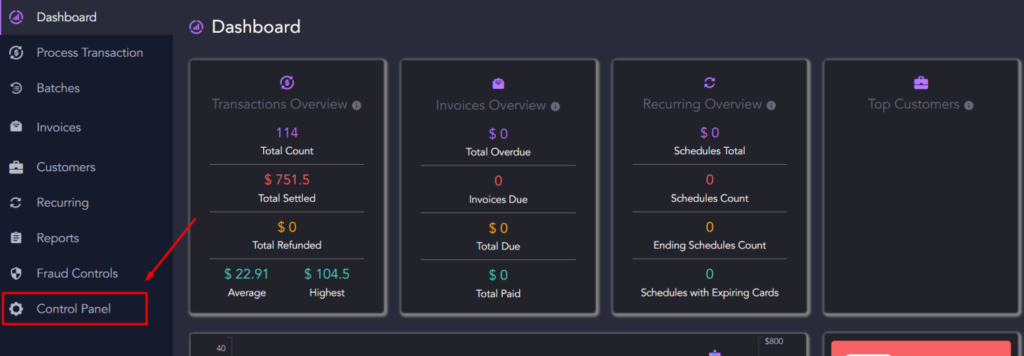
Step 1: Open Control Panel
Log in to your accept.blue Merchant Terminal. In the left-hand dashboard menu, click Control Panel.
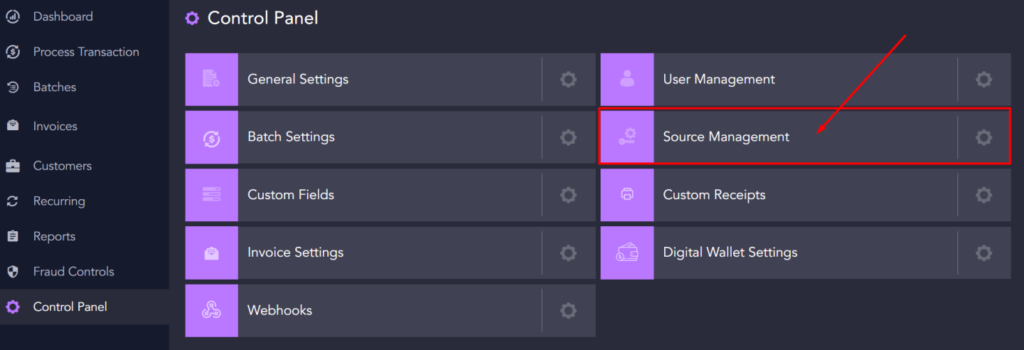
Step 2: Go to Source Management
Inside Control Panel, select Source Management. This is where accept.blue lists every API source connected to your merchant account, including the one your WooCommerce plugin will use.
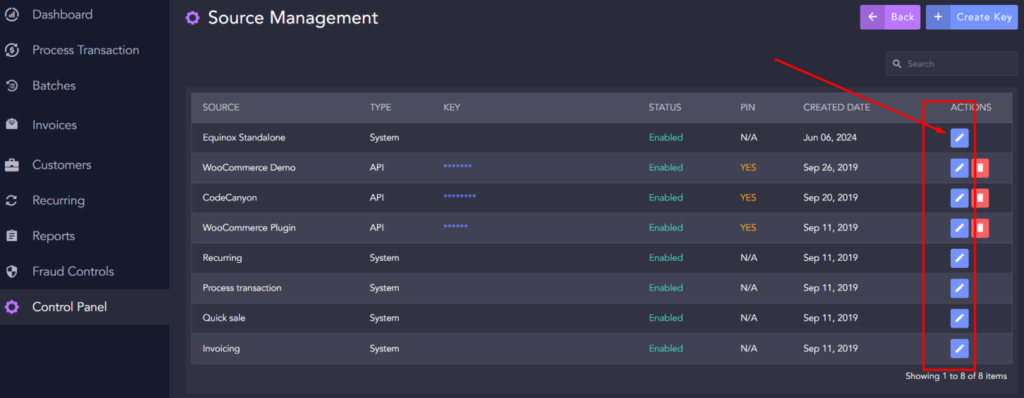
Step 3: Get Your Source Key and PIN
Find the correct source in the list, then click Action next to it. This reveals the Source Key and PIN for that source. Copy both values somewhere secure — you’ll paste them directly into your WooCommerce plugin settings in the next step.
Next Step: Add These to Your Plugin
Once you have your Source Key and PIN, head to WooCommerce > Settings > Payments in your WordPress dashboard, open the accept.blue gateway settings, and paste both values into the matching fields. Save your changes and run a test transaction in sandbox mode before going live.
If checkout fails after saving, double-check you copied the Source Key and PIN exactly as shown — both are case-sensitive, and a stray trailing space when pasting is one of the most common causes of a failed connection.
Haven’t installed the plugin yet? See our full accept.blue payment gateway installation guide first.
Frequently Asked Questions
Where do I find my accept.blue Source Key and PIN?
Log in to your accept.blue Merchant Terminal, go to Control Panel, then Source Management, and click Action next to your source to reveal both values.
What is the Source Key and PIN used for?
They authenticate API requests between your WooCommerce store and your accept.blue merchant account. The accept.blue payment gateway plugin needs both to process transactions.
Do I need a separate Source Key for each website?
It depends on how your accept.blue account is set up. Many merchants use one source per website or per environment (live vs. sandbox). Check your Source Management list to see which sources are already configured, or contact accept.blue support to set up an additional one.
What if I don’t see a Source Management option in Control Panel?
This usually means your merchant account doesn’t have the required permission level. Contact accept.blue support to confirm your account has API source access enabled.
Is it safe to store my Source Key and PIN in the WooCommerce plugin settings?
Yes. The accept.blue payment gateway plugin stores these credentials securely in your WordPress database and uses them only to authenticate API calls to accept.blue — they’re never exposed on the front end of your store.
Still stuck? Reach out through our Premium Support page and we’ll help you get connected.