 RyanPlugins
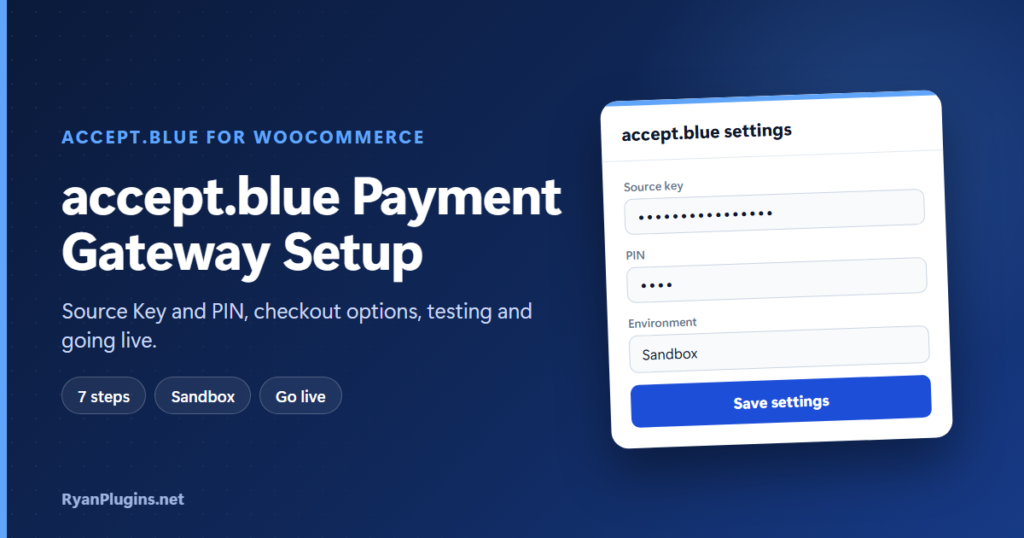
If you’re looking to set up the WooCommerce accept.blue payment gateway, you’re in the right place. This guide walks you through installing the accept.blue Payment Gateway for WooCommerce — available for $79 USD (one-time purchase) — so you can start accepting cards, ACH, and vaulted payments in minutes.
The accept.blue payment gateway plugin is built specifically for WooCommerce store owners who want PCI-compliant card and ACH processing without juggling multiple third-party services. Below, we’ll cover requirements, installation, account setup, pricing, and answers to the most common questions merchants ask before switching gateways.
How do I set up the accept.blue payment gateway in WooCommerce?
Short answer: Get your Source Key and PIN from the accept.blue merchant portal. Upload the plugin zip under Plugins › Add New › Upload Plugin and activate it. Then enter the key and PIN under WooCommerce › Settings › Payments › accept.blue, choose your checkout options, and place a sandbox test order before switching to live. On a store that already runs on HTTPS, the whole setup takes about 15 minutes.
On This Page
- What You’ll Need Before Installing
- accept.blue Payment Gateway Pricing
- Why Choose accept.blue for WooCommerce
- Step 1: Download the Plugin
- Step 2: Extract the Zip File
- Step 3: Install the Plugin
- Step 4: Connect Your Merchant Account
- Step 5: Choose Your Checkout Options
- Step 6: Test in Sandbox Mode
- Step 7: Go Live
- Troubleshooting
- Frequently Asked Questions
What You’ll Need Before Installing the accept.blue Payment Gateway
- An active WordPress site with WooCommerce installed and activated
- An accept.blue merchant account with your API credentials
- The accept.blue payment gateway plugin zip file (from your CodeCanyon purchase, Patreon download, or WordPress.org)
- A supported PHP version (PHP 7.4 or higher, including PHP 8.4)
Not comfortable handling the setup yourself? Our Custom WordPress Development team can install and configure the gateway for you.
accept.blue Payment Gateway Pricing
The accept.blue payment gateway for WooCommerce is priced as a straightforward $79 USD one-time purchase — no recurring subscription fees to use the plugin itself. You pay once, own the license for life, and receive free updates as new WooCommerce and WordPress versions roll out.
accept.blue Payment Gateway for WooCommerce
$79 USD
One-time purchase · Lifetime license · Free updates
Buy Now — $79 USDWhy Choose the accept.blue Payment Gateway for WooCommerce
Unlike gateways that charge a monthly platform fee on top of processing costs, the accept.blue payment gateway plugin keeps things simple: a single $79 license fee, direct integration with your accept.blue merchant account, and support for the checkout flows most stores actually use — including WooCommerce Block Checkout and WooCommerce Subscriptions.
- Credit card and ACH bank payments through a single gateway
- 3D Secure (3DS) authentication for fraud protection
- Secure customer vaulting and tokenization — no card data touches your server
- Full WooCommerce Subscriptions support, including switching payment methods
- Compatible with WooCommerce Block Checkout
- PHP 8.4 compatible and actively maintained
Step 1: Download the accept.blue Payment Gateway Plugin
Depending on where you purchased or subscribed, you can grab the plugin from one of the following:
- CodeCanyon: Log in to your CodeCanyon Downloads dashboard and download the plugin zip file for your $79 license.
- Patreon: Download the latest release directly from your subscriber-only Patreon posts.
- WordPress.org: Search for the plugin in Plugins > Add New inside your WordPress dashboard and install it with one click (skip to Step 3 if using this method).
Step 2: Extract the Zip File
If you downloaded a zip archive from CodeCanyon or Patreon, extract it on your computer first. Inside, you’ll find the actual accept.blue payment gateway plugin zip file that WordPress needs — this is the one you’ll upload in the next step. Keep the extracted folder handy in case you need to reference the included documentation later.
Step 3: Install the accept.blue Payment Gateway Plugin in WordPress
Log in to your WordPress admin dashboard and follow these steps:
- Go to Plugins > Add New
- Click the Upload Plugin button at the top of the page
- Choose the accept.blue payment gateway plugin zip file from your computer
- Click Install Now and wait for the upload to finish
- Click Activate Plugin
Step 4: Connect Your accept.blue Merchant Account
Once activated, head to WooCommerce > Settings > Payments and enable the accept.blue gateway. Enter your API credentials from your accept.blue merchant dashboard, choose whether to enable 3D Secure and customer vaulting, and save your changes.
Run a test transaction in sandbox mode before switching to live to confirm everything is connected correctly. This is also a good time to test any subscription products if your store uses WooCommerce Subscriptions, since renewal charges will route through the same gateway.
Step 5: Choose Your Checkout Options
The gateway’s settings tab has a few options worth setting before your first order:
- 3D Secure challenge timeout: how long a customer has to finish authentication: 30 seconds, 1, 2 or 5 minutes.
- Accepted card icons: which card logos show at checkout (Visa, Mastercard, Amex, Discover, Diners Club, JCB).
- Surcharge: pass card fees on to the customer, calculated on orders, subscriptions and captures.
- Extra payment methods: with the Premium Addons, ACH / eCheck, Google Pay and installment plans appear as separate payment methods.
Step 6: Test in Sandbox Mode
Enter your accept.blue sandbox credentials and place a few test orders. Check that:
- 3D Secure challenges appear and complete
- saved cards are stored and can be reused
- order statuses update on classic checkout, Blocks checkout and the order-pay page
- subscription renewals charge correctly, if you sell subscriptions
Step 7: Go Live
Swap in your production credentials, place one small real order, and refund it from the WooCommerce order screen to confirm refunds work too.
Troubleshooting common setup problems
| Problem | Likely cause | Fix |
|---|---|---|
| accept.blue doesn’t appear at checkout | The gateway is disabled, or another plugin hides payment methods at checkout | Enable it under WooCommerce › Settings › Payments, then test with other checkout plugins switched off |
| Authentication or “invalid key” errors | Sandbox key with live mode, or a live key with sandbox | Use a Source Key and PIN from the same environment as the mode you selected. See how to get your Source Key and PIN |
| Card fields don’t load | The page isn’t on HTTPS, or a caching or script optimization plugin is changing the checkout | Load checkout over HTTPS and exclude cart and checkout from caching and JavaScript optimization |
| 3D Secure window closes before the customer finishes | The challenge timeout is too short | Increase the 3D Secure challenge timeout in the gateway settings |
Frequently Asked Questions About the accept.blue Payment Gateway
How much does the accept.blue payment gateway plugin cost?
The plugin is a one-time purchase of $79 USD. There’s no recurring license fee to keep using the plugin.
Is this plugin compatible with my WooCommerce store?
The plugin works with current versions of WordPress and WooCommerce, including WooCommerce Block Checkout and WooCommerce Subscriptions. It also supports PHP 7.4 through PHP 8.4.
What do I need to set up the accept.blue payment gateway?
You’ll need an active WooCommerce store, an accept.blue merchant account with API credentials, and the plugin zip file from CodeCanyon, Patreon, or WordPress.org.
Is the accept.blue payment gateway secure and PCI compliant?
Yes. Card data is tokenized through accept.blue rather than stored on your server, and the plugin supports 3D Secure authentication and secure customer vaulting for recurring or repeat transactions.
Does it support subscriptions and recurring payments?
Yes. The plugin integrates with WooCommerce Subscriptions, including support for changing payment methods and switching between card and ACH gateways.
Can I try the accept.blue payment gateway before buying?
You can connect the plugin to accept.blue’s sandbox environment to test the full checkout flow before processing any live transactions, at no extra cost beyond the $79 purchase.
Do I need an SSL certificate?
Yes. Your store must run on HTTPS. The hosted card fields and 3D Secure won’t load on a page served over plain HTTP.
How long do customers get to complete 3D Secure?
You choose: 30 seconds, 1 minute, 2 minutes or 5 minutes, set in the gateway settings.
Get the accept.blue Payment Gateway for $79
Ready to accept payments with the accept.blue payment gateway?
$79 USD · One-time purchase
Get the Plugin — $79 USDIf you run into any issues during setup, reach out through our Premium Support page or drop a comment below — we’re happy to help troubleshoot.